macOS app
Screencorder
A small macOS screen recorder. Pick a window, a screen or an area, press Record, and get an MP4.
What it does
- Record a window or a whole screen Chosen with the macOS picker.
- Record an area Draw a rectangle on the screen. Hold Shift to keep its proportions, or Space to move it while you draw.
- Move and resize it Drag the Move area handle, or the squares on its border, instead of rearranging your windows to fit it.
- YouTube shapes An area locked to 16:9 (saved as 1080p, 1440p or 4K) or to 9:16 for Shorts (1080 × 1920).
- See what is recorded The rest of the screen is dimmed. The dimming is not in the video, and clicks pass through it.
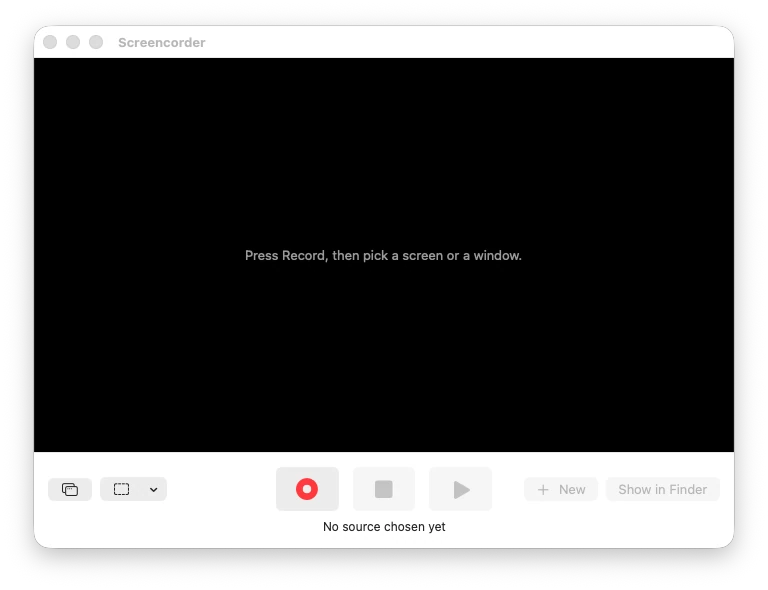
- Record, Stop, Play The last recording plays back in the window. Show in Finder gets you the file.
Recordings are MP4: H.264 video with system audio (AAC), saved to
~/Movies/Screen Recordings/. The microphone is not recorded.
Install
-
Download
Screencorder-1.3.zipfrom the latest release and unzip it. - Move
Screencorder.appto your Applications folder. - Open it. The app is not notarised by Apple, so macOS blocks the first launch. Go to System Settings, Privacy & Security, scroll down and click Open Anyway.
Recording a window or a screen needs no extra permission. Recording an area does: allow Screencorder under System Settings, Privacy & Security, Screen & System Audio Recording, then choose the area again.
Use
- Press Record. The first time, macOS asks which window or screen to record.
- Press Stop. The MP4 is saved and loaded into the window.
- Press Play to watch it, or Show in Finder to get the file.
For an area, click the dashed-rectangle button, choose a shape and drag on the screen. Esc cancels. New (or N, ⌘N) clears the last recording from the window; the file stays on disk.
How it is built
One SwiftUI window on ScreenCaptureKit. SCContentSharingPicker chooses a window
or screen, SCStream captures it and SCRecordingOutput writes the
MP4. An area recording captures the display with a source rectangle, leaving the app's own
windows out. There is no Xcode project: a shell script compiles it with
swiftc, and the command line tools are enough.
xcode-select --install
./build.sh            # build/Screencorder.app for your Mac
./build.sh --release  # a universal app and a zip in build/release/